
Tuition Centre Management Software: A Practical Buyer’s Guide
A practical guide to choosing tuition centre management software for student records, classes, attendance, fees, parent communication, and day-to-day operations.
- Choose software around the work your team repeats: enquiries, enrolment, class updates, attendance, and fee follow-up.
- Check that student, parent, class, and payment records connect, so staff do not need to re-enter the same information.
- Test the actual parent and staff workflows with your own example data before you commit.
- Plan data cleanup, staff roles, and training as part of setup—not as afterthoughts.
Running a tuition centre involves more than teaching. Staff answer parent enquiries, arrange trial lessons, enrol students, coordinate classes, record attendance, prepare invoices, and follow up when something changes. When those details live in separate spreadsheets, calendars, and chat threads, it can be difficult to know which record is current.
Tuition centre management software brings some or all of that work into a shared system. This guide explains what to evaluate, how to compare options against your actual routines, and what to prepare before moving your records.
Start with the work your team repeats
Before comparing product feature lists, write down a typical week at your centre. Include the hand-offs between people, not just the names of the tools you use.
For example, a new family might ask about a class through WhatsApp. A staff member replies, records the enquiry, arranges a trial lesson, and later converts the family to an enrolment. Someone then assigns a class, shares the schedule, records attendance, and prepares the next invoice. If any step depends on remembering to copy details into another place, include that in your evaluation.
This simple map gives you a practical way to test software. It also helps separate essential requirements from features that sound useful but do not solve a current problem.
What to look for in education centre software
Student and parent records
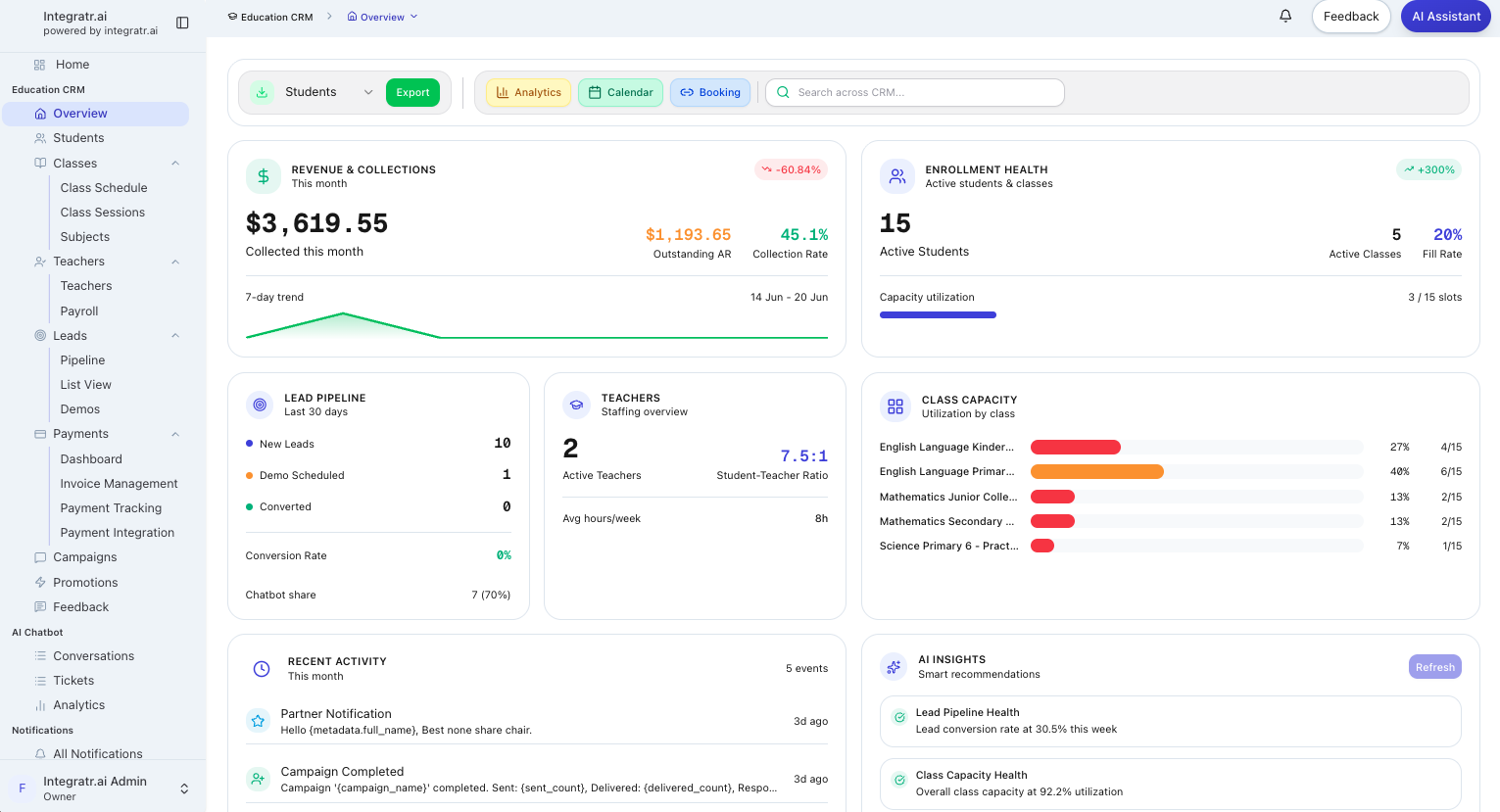
Check whether a student’s enrolment, class, attendance, billing, and parent contact details can be found together. Ask how the system handles siblings, more than one parent contact, class changes, and a student returning after a break. These details reveal whether a product fits the way your centre manages families.
Enquiry and enrolment tracking
An enquiry should have a clear status and a next step. Look for a way to record where it came from, which programme the family asked about, who is following up, and whether a trial lesson or enrolment is pending. Your team should be able to tell which enquiries need attention without searching across message histories.
Classes and attendance
Review how the system represents programmes, class groups, tutors, schedules, and changes. Then try the attendance process from the point of view of the person who takes the register. It should be clear how to record a present student, an absence, or a late change, and how staff can review attendance later.
Fees, invoices, and payment follow-up
Ask how recurring or term-based fees are set up, how invoices are issued, and how a payment is matched to a student. Confirm whether staff can see what is outstanding and what reminders are sent to families. If the system connects to a payment provider, confirm which provider and payment methods are supported for your account.
Parent communication
Parents may contact the centre through WhatsApp, email, a website form, or a phone call. Check which channels the software supports and how conversations connect to a family’s records. If an AI chatbot is included, ask how staff configure its answers, what information it can access, and how a question is handed to a person when it needs follow-up.
Staff access and useful reports
Different roles need different views. Ask whether the system lets you control what administrators, tutors, and finance staff can see or change. Review reports for questions you actually ask, such as current enrolments, attendance, unpaid invoices, or enquiries awaiting follow-up. A dashboard is only useful when its figures have a clear definition and match the underlying records.
Compare systems with the same real workflow
Use the same short scenario for every product you consider. Create a sample enquiry, schedule a trial lesson, enrol a student, assign a class, record attendance, issue an invoice, and note a parent conversation. If possible, ask the staff members who perform those tasks to try it themselves.
Score each step on a small set of questions:
| What to check | Questions to ask |
|---|---|
| Fit | Does the workflow match how our centre works? |
| Record keeping | Is information entered once and easy to find later? |
| Staff effort | Can the person responsible complete the task without a workaround? |
| Parent experience | Is the next step clear to the family? |
| Visibility | Can a manager see what is waiting for attention? |
| Support | Who helps with setup, imports, and questions after launch? |
Also ask how data can be exported if you leave, how permissions work, what is included in the quoted price, and which integrations are available in your region. Confirm answers with the provider rather than relying on a feature name in a comparison table.
Prepare for a smoother move
Moving to a new system is a small operations project. Start by deciding which records are current and which can be archived. Remove duplicate contacts, standardize class and programme names, and identify fields that staff must keep up to date.
Next, assign an owner for each part of the setup: student data, class schedules, fee rules, staff access, and parent communications. Ask the provider to explain how imported records will be checked, how mistakes can be corrected, and what training is available. Before launch, have staff test a few common tasks and agree where to report issues.
It is usually easier to introduce a system with a clear first use case than to automate every process at once. A centre might begin with enquiry tracking and student records, then bring in attendance or billing after the team is comfortable. Choose a sequence that fits your own calendar and staffing.
When a spreadsheet may still be enough
A spreadsheet can be a reasonable choice when the centre has simple routines, few hand-offs, and one person maintaining accurate records. Dedicated software becomes more relevant when the team spends time reconciling multiple copies, misses follow-ups, or cannot easily answer basic questions about enrolment, classes, attendance, and fees.
The goal is not to adopt the largest platform. It is to choose a system your team can keep accurate and that makes the next action easier to see.
Questions to ask before choosing
- Can we see a student’s enrolment, classes, attendance, and billing history together?
- Can we track an enquiry from the first parent message through enrolment?
- What happens when a student changes class or a tutor changes a schedule?
- Which messaging channels and payment providers are supported for our centre?
- How are staff roles and access permissions configured?
- What does setup include, and how are imported records checked?
- Can we export our records in a usable format?
- Which reports can we use to review the work that matters to us?
Frequently asked questions
What should tuition centre management software include?
Start with the work your centre needs to manage: student and parent records, enquiries, classes, attendance, billing, communication, and reporting. The right software connects the tasks your staff currently have to coordinate by hand.
Is an education CRM the same as student management software?
The terms overlap. An education CRM often focuses on enquiries and communication with families. Student management focuses on enrolment, classes, attendance, and ongoing records. Many platforms for education centres include both.
How do I know when my centre needs dedicated software?
Look for repeated manual hand-offs, duplicated records, missed follow-ups, or difficulty seeing what is happening with a class, student, enquiry, or payment. Those are useful signals to assess whether a shared system would help.
What should I prepare before moving to a new system?
Identify the records to migrate, remove duplicates, agree on staff roles, and document your enquiry, enrolment, attendance, and billing routines. Ask the provider how imports are validated and what training is available.
Integratr.ai brings student and class records, parent enquiries, billing, and workflows into one workspace for tuition and enrichment centres. Explore the education centre features or start a 14-day free trial.
See how Integratr.ai supports education centre operations.